

How the SALUS–Procore integration works
Keep Procore at the center of project operations. Give crews a field-first safety workflow in SALUS, then return configured records to the Procore tools where the project team already works.
- Updated
- Technical contact
- Rob Clifford, CTO
- Reading time
- 10 min read
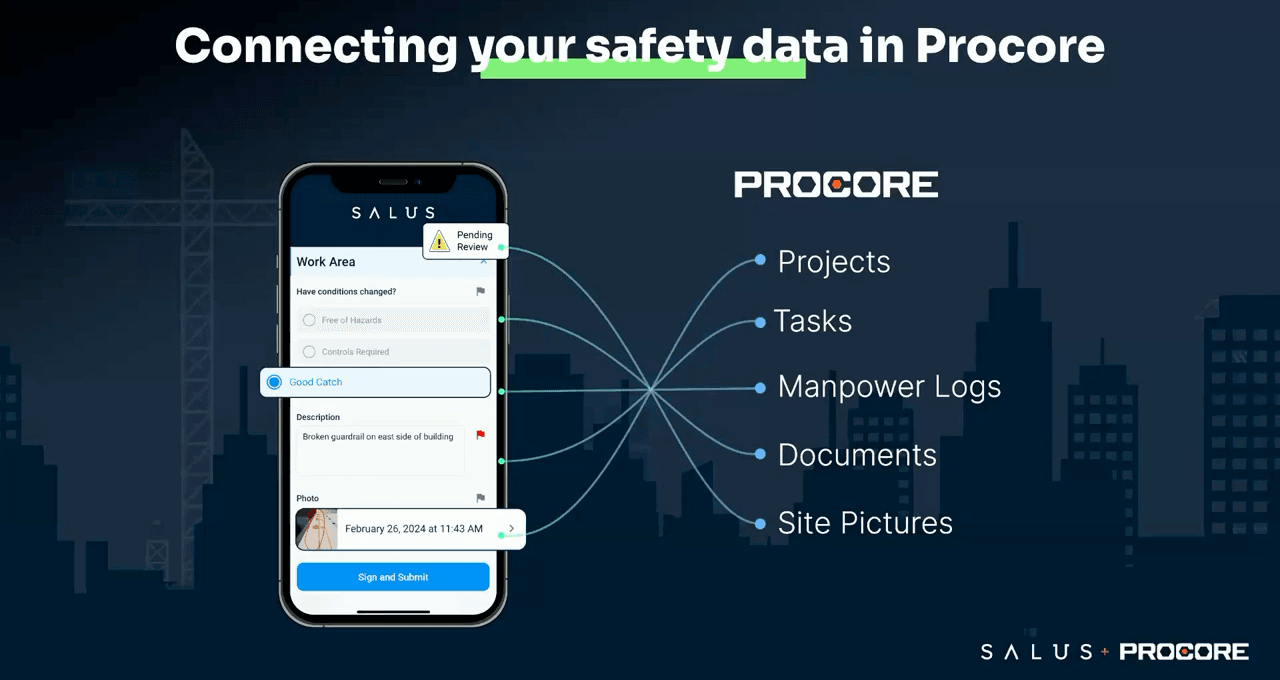
Procore stays the project record. SALUS runs the field safety workflow.
The integration is designed for contractors that already use Procore to manage the project but need a simpler way for crews and trade partners to complete safety work. Projects begin in Procore. Their linked sites become available in SALUS. Field teams then submit the configured forms, photos, signatures, and manpower details through SALUS.
On a scheduled interval, supported records move to the agreed Procore destination. The office can find the evidence in the project record without asking the field to enter the same information again.
One project relationship connects the full workflow.
Procore provides the project context. SALUS captures the field event. The configured integration returns the resulting record to the appropriate project tool.
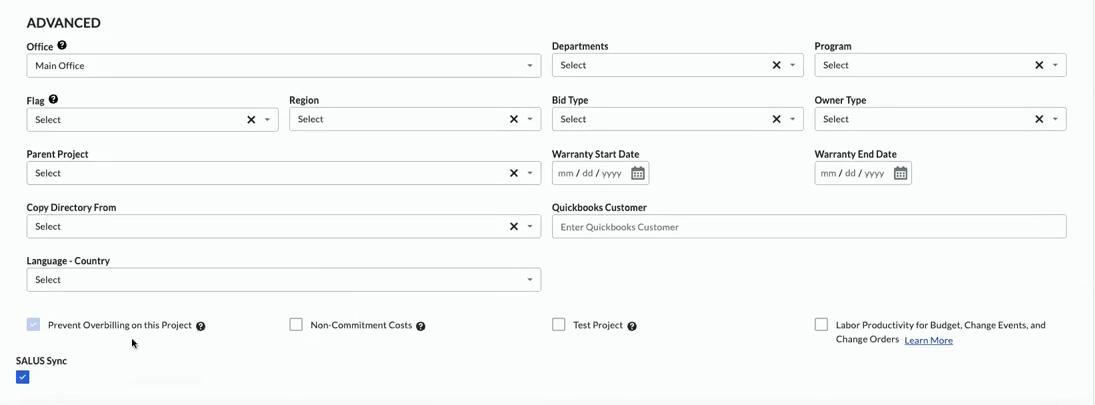

Projects selected for SALUS Sync are linked to the corresponding SALUS site using the Procore project ID.
Procore project
Create and select the project for SALUS Sync.
Linked SALUS site
The Procore ID pairs the records across systems.
Field safety work
Crews submit configured forms, photos, and manpower data.
Procore destination
The record appears in Documents, Tasks, Photos, or Daily Log.
What moves—and what the project team sees.
These are the current workflows confirmed by the product demonstration and SALUS. They describe supported outcomes, not a promise that every customer uses every mapping.
Projects
A Procore project selected for SALUS Sync creates or links the corresponding SALUS site. The Procore project ID preserves the relationship.
Submitted forms
Configured form records are filed in the agreed Procore Documents folder. The demonstrated structure groups records by company and submission month.
Forms requiring review
A submitted form with review required can create a Procore Task that links the reviewer back to the SALUS record.
Photo attachments
Photos attached through a configured SALUS form can be copied into the Procore Photos timeline for the linked project.
Manpower fields
Mapped company, worker-count, hours, date, and work-description fields can appear as Manpower entries in Procore’s Daily Log for review.
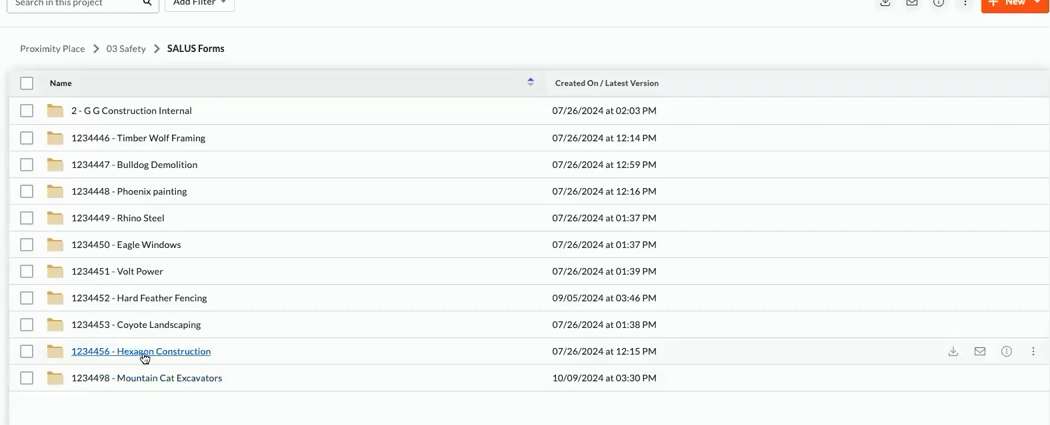
Documents: durable project evidence
The destination folder is configured with the customer. In the demonstrated setup, records were separated by company and then by month so project teams could find a submission without rebuilding the filing structure manually.
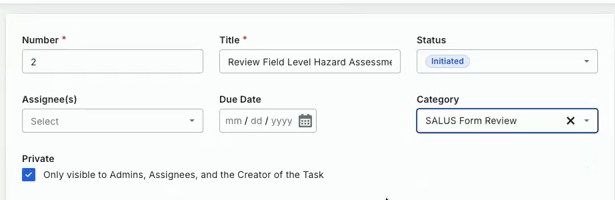
Tasks: bring review into the project workflow
When a configured form is submitted with review required, Procore can create a Task containing a link to the SALUS record. The project team can assign the Task and the reviewer can open the original form to approve or reject it in SALUS.
Capture manpower where trade partners already complete safety work.
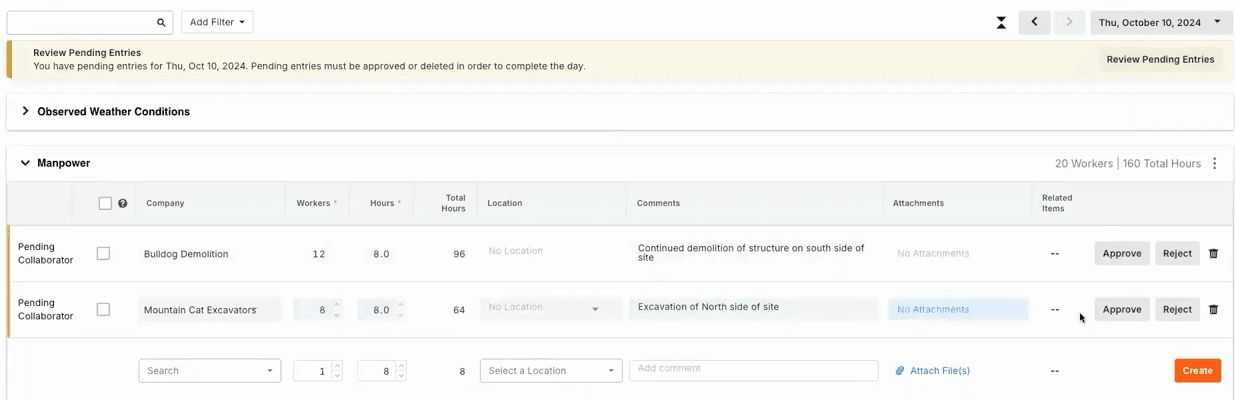
SALUS can map selected form fields—such as company, work date, worker count, hours, and work performed—to Procore’s Daily Log. In the demonstrated workflow, the entries arrived in Manpower as pending collaborator records for the project team to approve or reject.
Keep the visual record with the project.
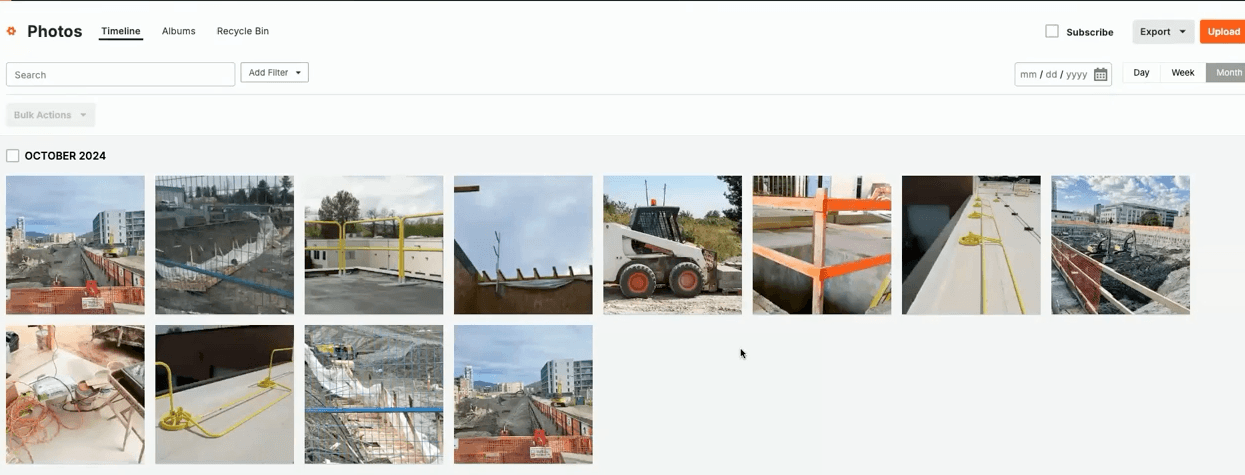
When a configured form contains a photo-attachment field, the integration can copy those images into Procore Photos for the linked project. The original safety context remains in SALUS; the project team gains access to the visual evidence in Procore.
Configuration is short. Workflow decisions matter more.
The recorded implementation walkthrough describes roughly a 20-minute session with a Procore administrator, followed by SALUS-side configuration. Existing data or catch-up requirements can add time, so that number is a connection-session estimate—not a universal deployment promise.
- 1
Confirm ownership
Decide which project data originates in Procore and which safety records originate in SALUS.
- 2
Connect Procore
A Procore administrator completes the customer-side connection with the SALUS team.
- 3
Map the destinations
The person who manages the Procore structure confirms the Documents folder, Task behavior, Daily Log fields, and other destinations in scope.
- 4
Validate representative records
Test a project, submitted form, review Task, photo attachment, and manpower entry before broader rollout.
- 5
Roll out and monitor
Enable the agreed projects, confirm the interval, and periodically verify that the configured records remain useful in both systems.

Willmeng helped shape the integration around the practical needs of superintendents and trade partners. Its published customer story confirms that log submissions are filed in Procore Documents without duplicate entry.
Read the Willmeng story →The Procore integration created more tangible value in the form of time back to the field. We eliminated double-entries.
Watch the product demonstration
The 39-minute SALUS and Procore webinar includes the live workflows documented here, implementation Q&A, commentary from Procore’s partnerships team, and Willmeng’s firsthand experience.
Watch the on-demand webinar →